# How to Use Pre-Built Templates?
Template Studio is a feature that comes with WPBakery Page Builder, it allows you to import ready-made templates into your page.
**Step 1 :** Navigate to the post type you want.
**Step 2 :** Click on the post to which you want to add a pre-built template.
*You can create it on a new page instead.*
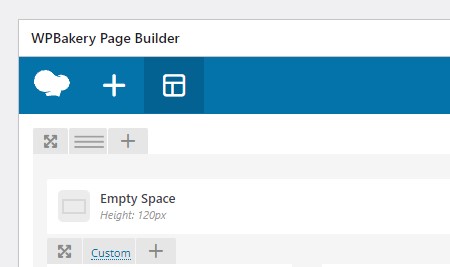
**Step 3 :** Click the templates button on the WPBakery Page Builder navigation.
*If you don’t see this, switch to the page builder editor.*
**Step 4 :** Here you will see three options. Click the template group you want to import.
* **My Templates:** It is a list of templates that you create yourself.
* **Template Library:** It is a list of templates included with WPBakery Page Builder.
* **Default Templates:** It is a list of templates included with the theme.
**Step 5 :** To import the templates that come with the theme or that you have created, simply press the plus button on the template.
To access the templates that come with WPBakery Page Builder, click the Access Library button in the ‘Template Library’.
---
# Agent Instructions: Querying This Documentation
If you need additional information that is not directly available in this page, you can query the documentation dynamically by asking a question.
Perform an HTTP GET request on the current page URL with the `ask` query parameter:
```
GET https://wdt-kirki.gitbook.io/wdt-kirki/wpbakery-page-builder/how-to-use-pre-built-templates.md?ask=
```
The question should be specific, self-contained, and written in natural language.
The response will contain a direct answer to the question and relevant excerpts and sources from the documentation.
Use this mechanism when the answer is not explicitly present in the current page, you need clarification or additional context, or you want to retrieve related documentation sections.